
Graphical User Interface
Proxmox Datacenter Management offers an integrated, web-based interface to manage the server. This means that you can carry out all administration tasks through your web browser, and that you don't have to worry about installing extra management tools. The web interface also provides a built-in console, so if you prefer the command line or need some extra control, you have this option.
The web interface can be accessed via https://youripaddress:8443. The default login is root, and the password is either the one specified during the installation process or the password of the root user, in case of installation on top of Debian.
Note
Most of the descriptions below will focus on the user interface set to "English", which uses the left-to-right text direction. If you use a language with a text direction from right-to-left, then some elements will appear on the right when the description says "left" and vice versa.
Features
Modern management interface for Proxmox Datacenter Manager
Customizable Views.
Management of remotes, resources, users, permissions, etc.
Secure HTML5 console
Support for multiple authentication sources
Support for multiple languages
Based on Yew, a modern Rust framework for creating multi-threaded, front-end web apps with WebAssembly.
Login
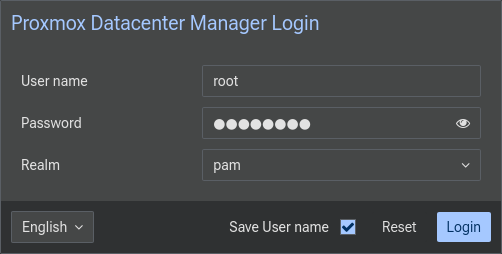
When you connect to the web interface, you will first see the login window. Proxmox Datacenter Manager supports various languages and authentication back ends (Realms), both of which can be selected here.
Note
For convenience, you can save the username on the client side, by selecting the "Save User name" checkbox at the bottom of the window.
User Interface Overview
The Proxmox Datacenter Manager graphical interface can be roughly split into three different section:
Header: On the left the header shows the current version information. In the middle a search bar is found that helps you find different remotes and resources. While on the right you can toggle the dark mode of the theme, go to the user documentation, open a list of tasks and open a menu to configure the theme and language that is used as well as log out.
Sidebar: Below the header on the left the sidebar contains the main menu with the different menu options listed.
Main Panel: The biggest part of the interface is taken up by the main panel. Its content will change depending on the menu selected in the sidebar. To start, the dashboard will be shown.
Sidebar
In the sidebar, on the left side of the page, you can see various items relating to specific management activities.
Dashboard
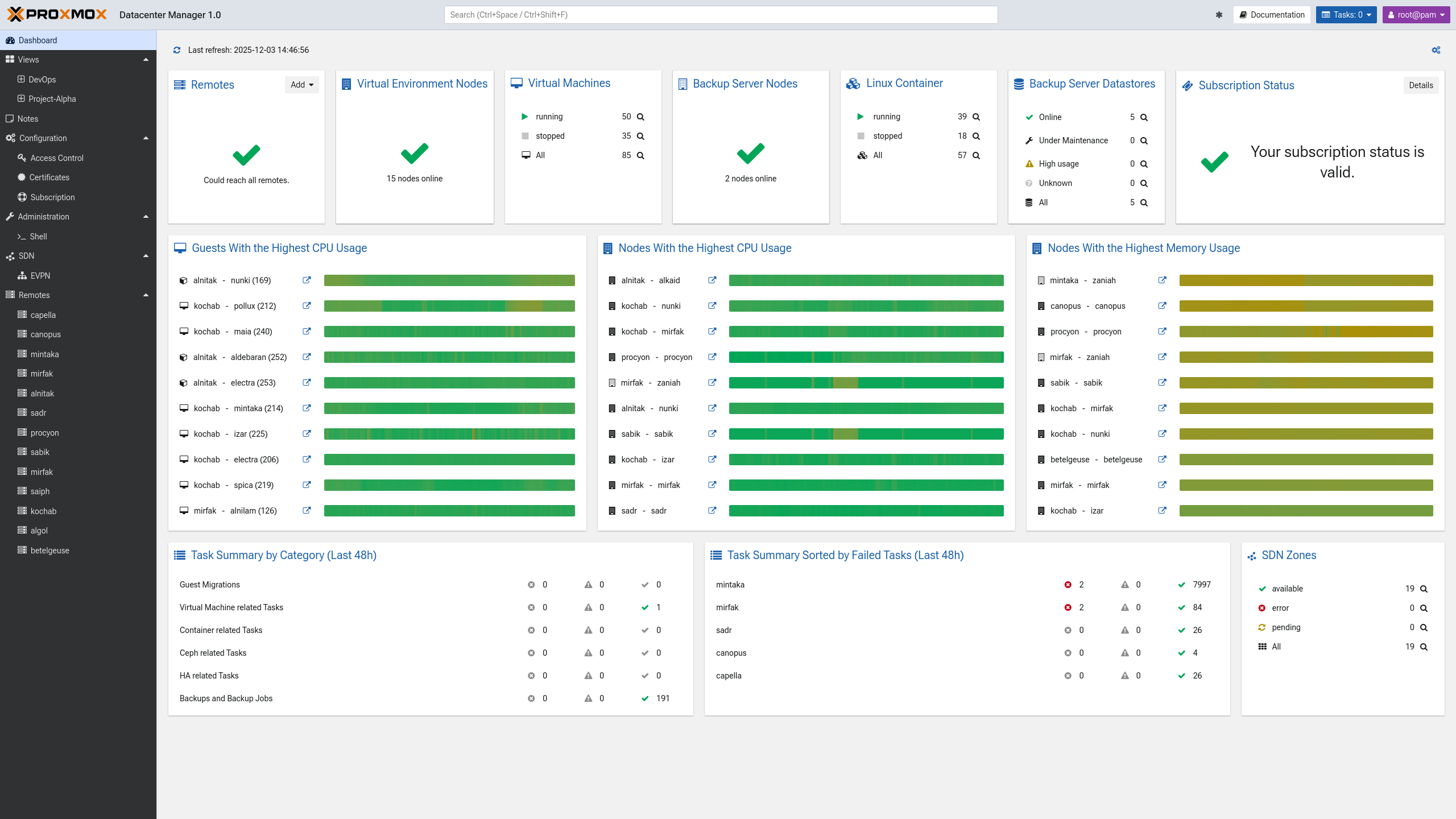
The dashboard gives an overview of all configured remotes and resources. Including whether remotes and their resources are up and running. Allowing you to tell at a glimpse how many VMs and CTs are running or stopped across your data center and the state of all configured datastores. Information on running tasks, CPU and memory usage, software defined networking (SDN) zones and the subscription status is shown as well.
Views
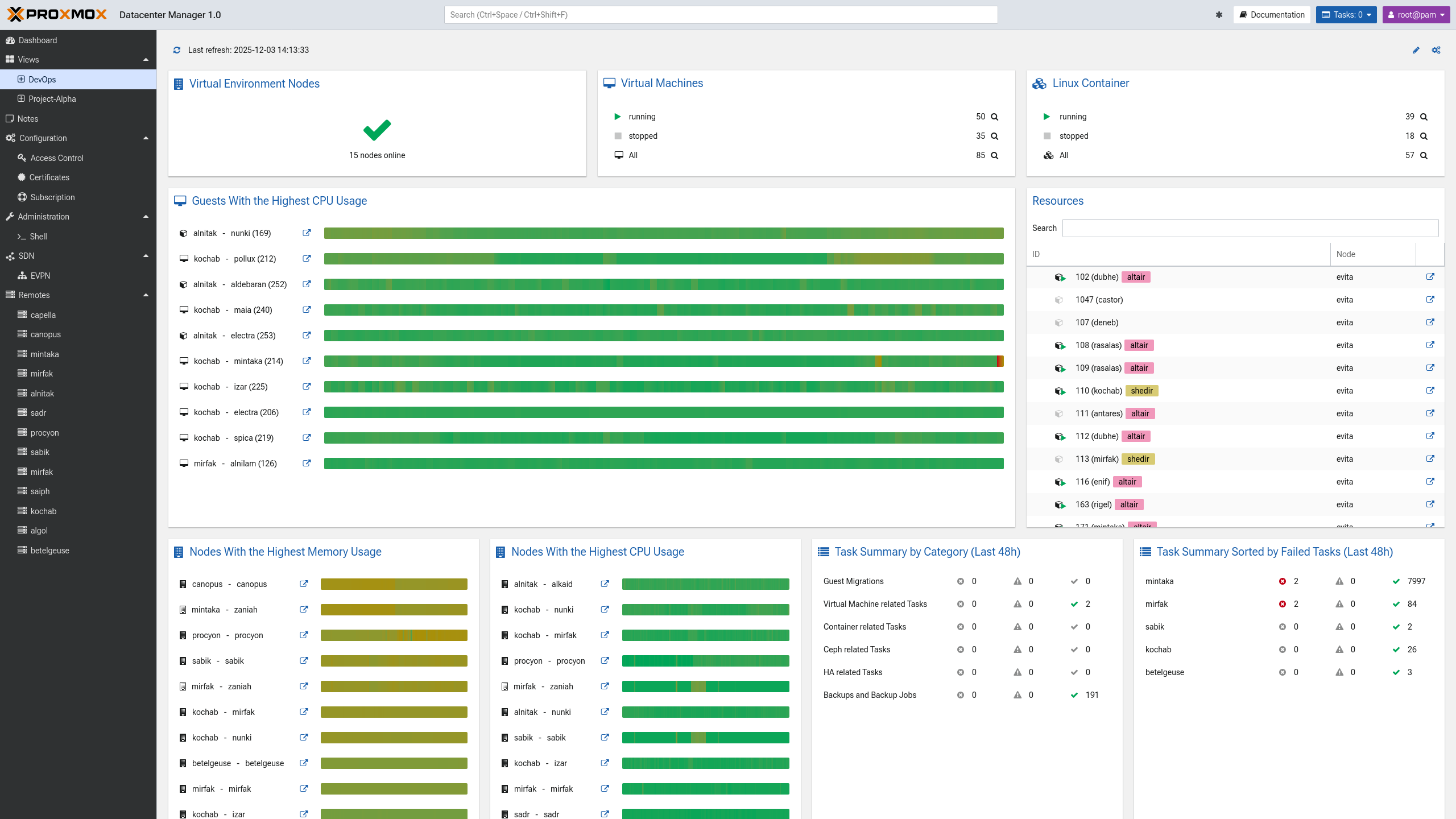
Views essentially allow you to create a custom dashboard. You can create a new view by copying an existing view or creating it as an empty view. Then a set of filters can be applied to a view, so it will only include information on specific resources or remotes. After creating a new view, select it from the sidebar to see what it looks like. From there you can also adjust its layout and widgets.
Notes
In the notes section you can keep track of information that might be useful to other administrators or yourself in the future. To format the notes, Markdown can be used. Notes are shared across all data center users that have been granted access to them.
Configuration
To configure your Proxmox Datacenter Manager, navigate to the "Configuration" menu. It allows you to change the time and timezone, the DNS server and the its network interfaces. A second tab makes the WebAuthn Two Factor Authentication (TFA) settings available. There are also several sub-menus:
Access Control: Manage users, API tokens, TFA settings, token and user permissions as well as authentication realms.
Certificates: Set up custom TLS or automated ACME certificates.
Subscription: To get proper support and access to the enterprise repository for your Proxmox Datacenter Manager, you can use this menu to check the subscription status.
Administration
The administration menu can be used to get an overview of the Proxmox Datacenter Manager node itself. Through the sub-menu "Shell" you can access the host's shell. Several tabs allow you to manage different aspects of the node, such as:
Node Status: See the CPU utilization, memory usage and other metrics of the Proxmox Datacenter Manager. Here you can also access package versions and the system report of your host, as well as reboot or turn of the host.
Updates: Manage and install updates.
Repositories: Add, enable and inspect update repositories.
Syslog: Access the hosts system log.
Tasks: An overview of all tasks of the host.
SDN
This menu provides an overview of all SDN zones across all configured Proxmox VE remotes. The EVPN menu can be used to set up EVPN zones across multiple remotes via a single interface. More detailed information on how to use Proxmox Datacenter Manager's SDN integration can be found in the SDN Integration section.
Ceph
This menu collects the Ceph clusters of all connected hyper-converged Proxmox VE remotes for read-only monitoring. See the Ceph section for details.
Guests
This menu provides a single cross-remote list of all QEMU and LXC guests, with text filtering, sorting, the common per-guest actions, and snapshot management. See the Guests section for details.
Remotes
Remotes allows you to configure new remotes as well as manage existing one. The "Remotes" menu itself provides different tabs to provide a unified view of your entire data center:
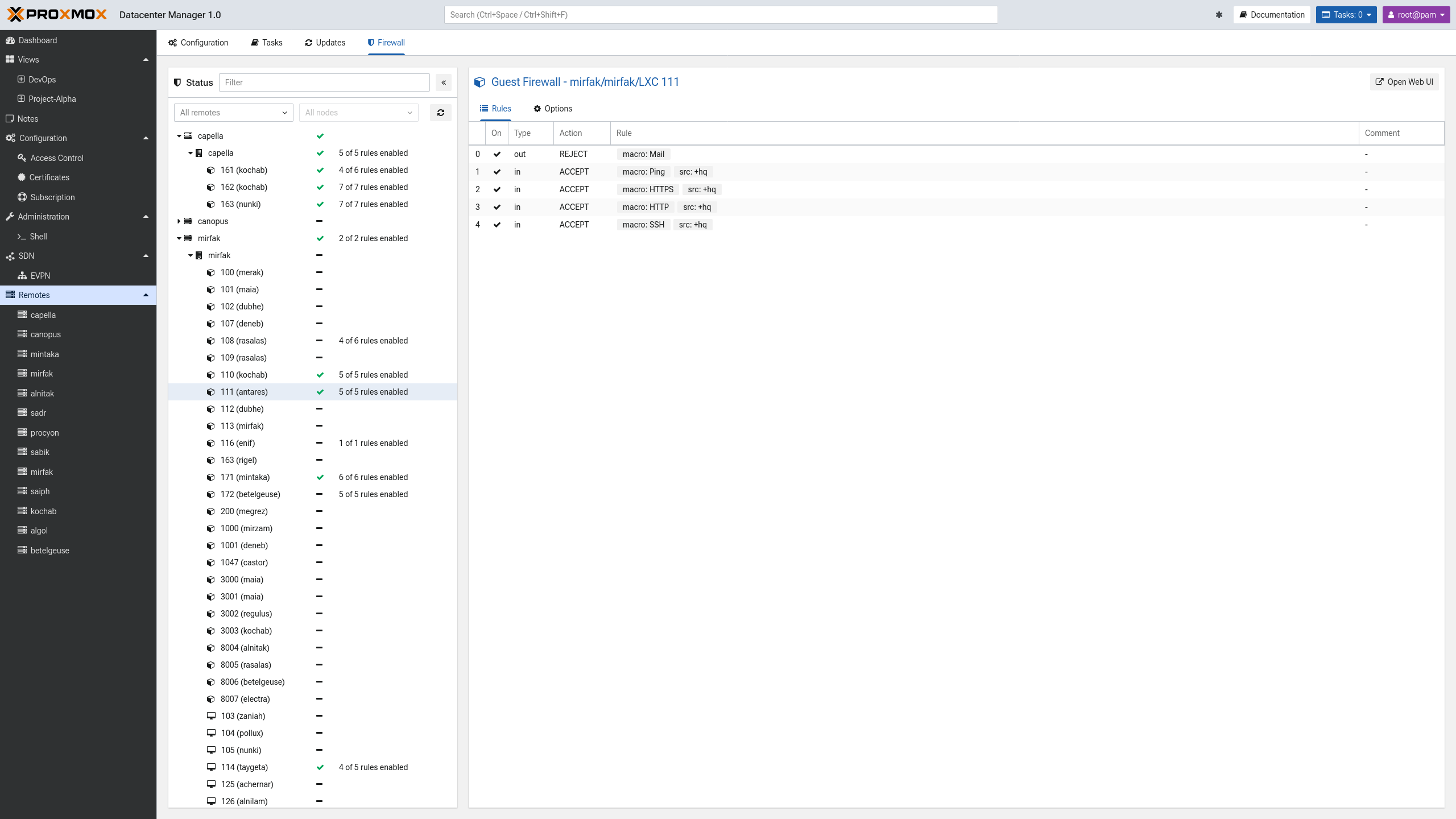
Configuration: Shows a list of configured remotes and some basic information on them. It also allows configuring new remotes.
Tasks: An overview of all tasks across the entire data center that can be filtered.
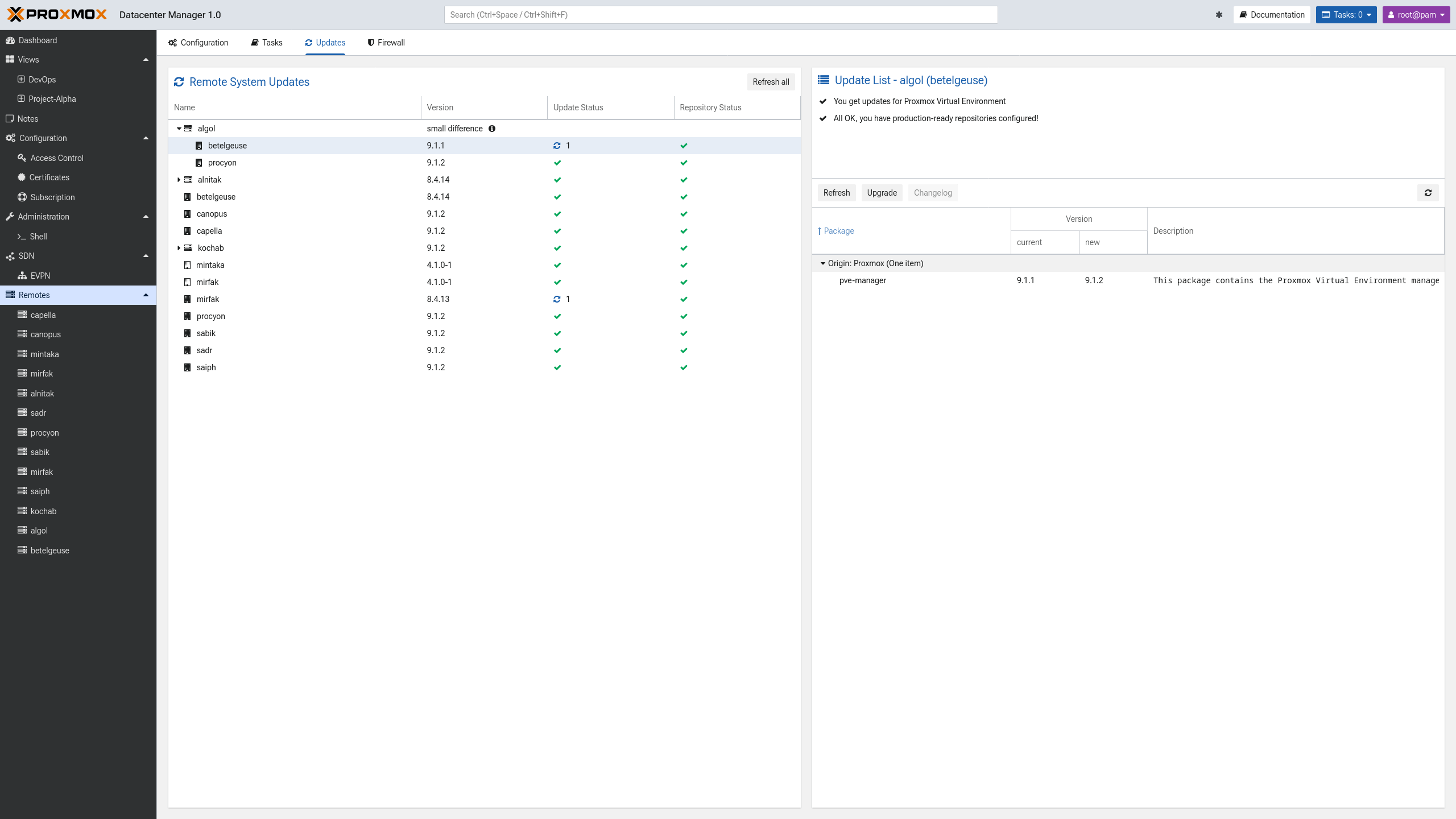
Updates: Allows managing updates and package versions for all remotes.
Firewall: Shows a list of configured firewall rules and settings for each Proxmox VE remote cluster, its nodes, and guests.
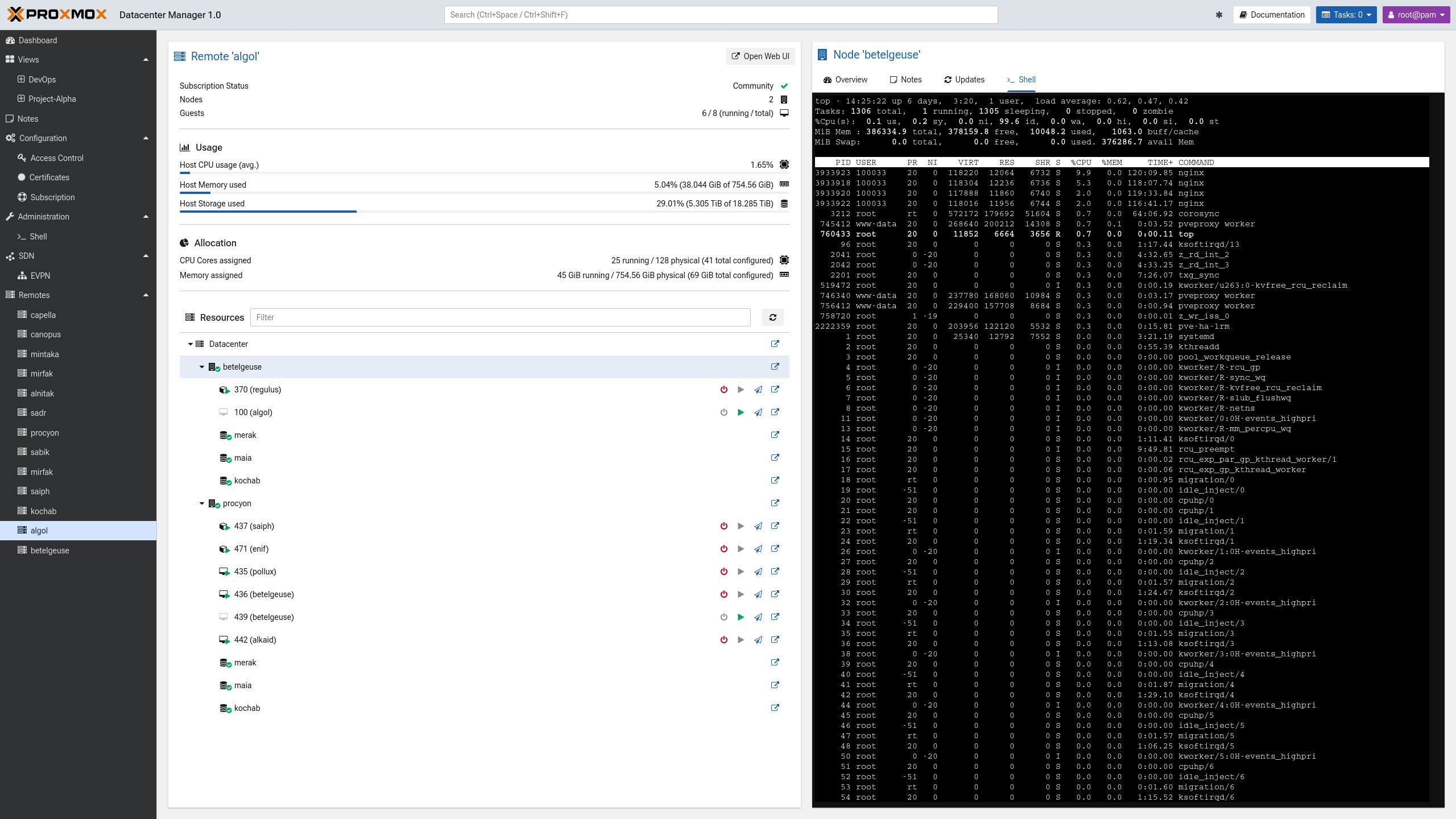
All configured remotes are also listed here in the sidebar. Each menu entry provides a split panel that contains the most important information for each remote in an easy to navigate interface.
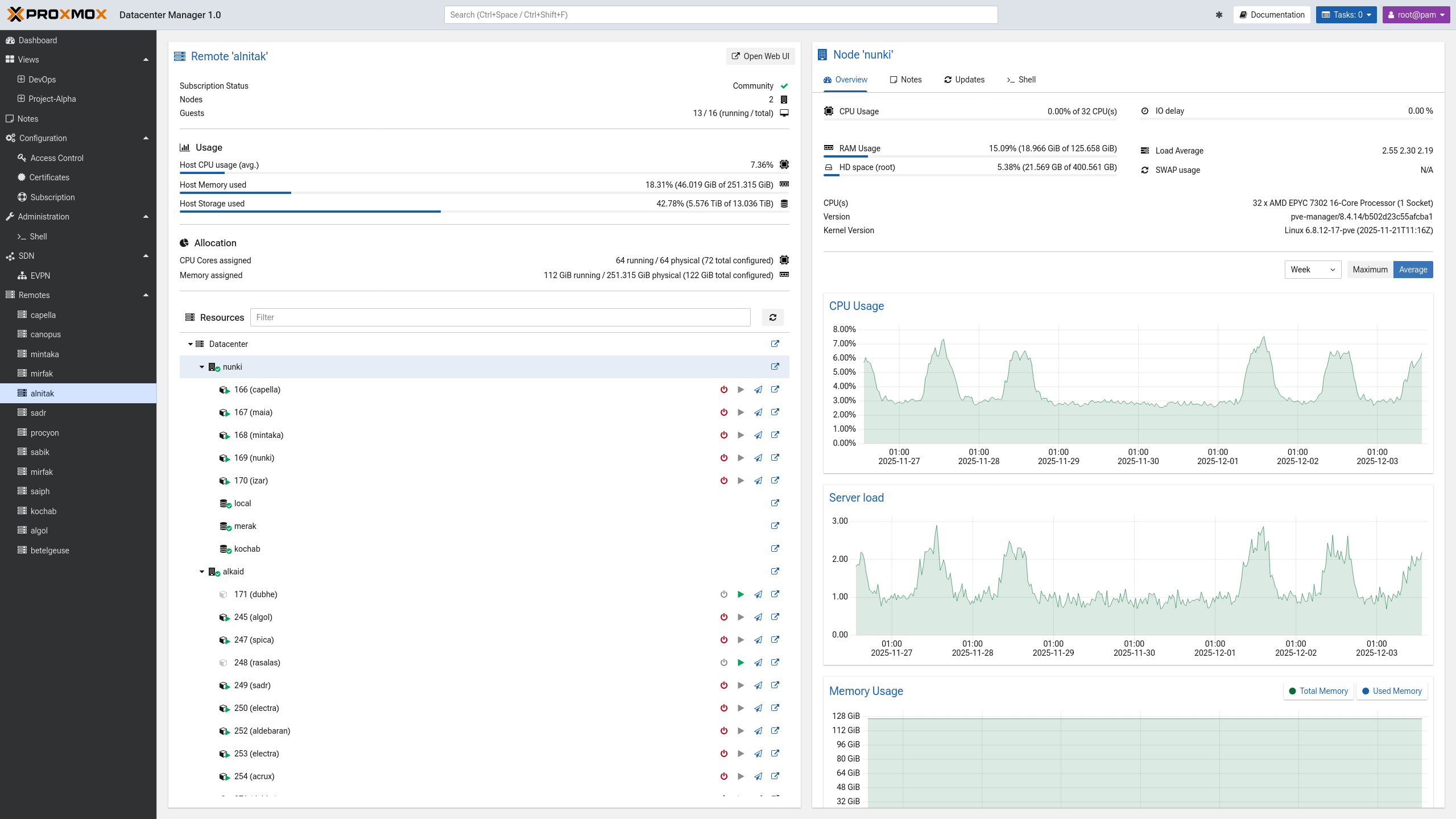
For Proxmox VE remotes this includes an overview of all nodes and guests in a cluster. By selecting a guest or a node in the tree on the right, you can access its more detailed tabs on the left. For nodes you can get an overview of their metrics, a read-only view of their notes and updates as well as access to a "Shell" tab. This last tabs gives you access to the nodes shell, making management easy.
Proxmox Backup Server remotes show an overview of all their datastores on the left. If you select the node itself, you can see an overview of its most important metrics and a separate tab that shows available updates. When selecting a datastore its usage and disk I/O are shown first. A second tab provides a detailed view of its content by namespace.